

Apollo.io
SDRs often juggle multiple tools when prospecting—one for finding leads and another for sending emails. This fragmented workflow can slow down outreach and make it harder to engage effectively with target accounts.
However, the integration between Reo.Dev and Apollo.io changes the prospecting game by simplifying this process.
With just a few clicks, SDRs can now identify potential buyers within ICP accounts and automatically add the buying committee members into Apollo.io sequences right from Reo.Dev . This seamless integration streamlines outreach, enabling SDRs to engage the right people faster and more efficiently.
Let's see how to integrate Apollo.io with Reo.Dev.
Create a Master Key in Apollo.ai
Step 1: Log into Apollo.io Admin account
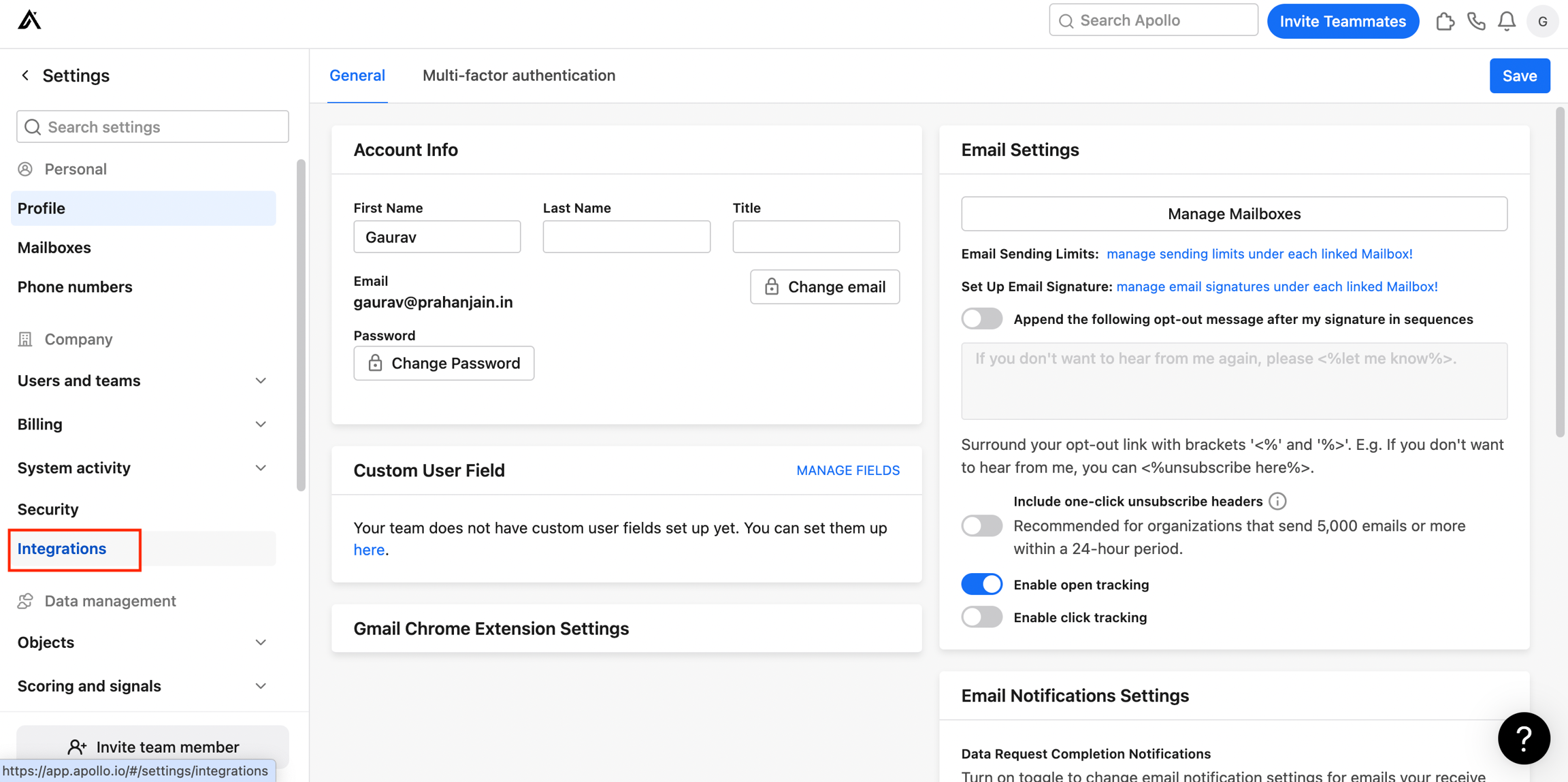
Step 2: Click on Settings.

Step 3: Click on Integrations.
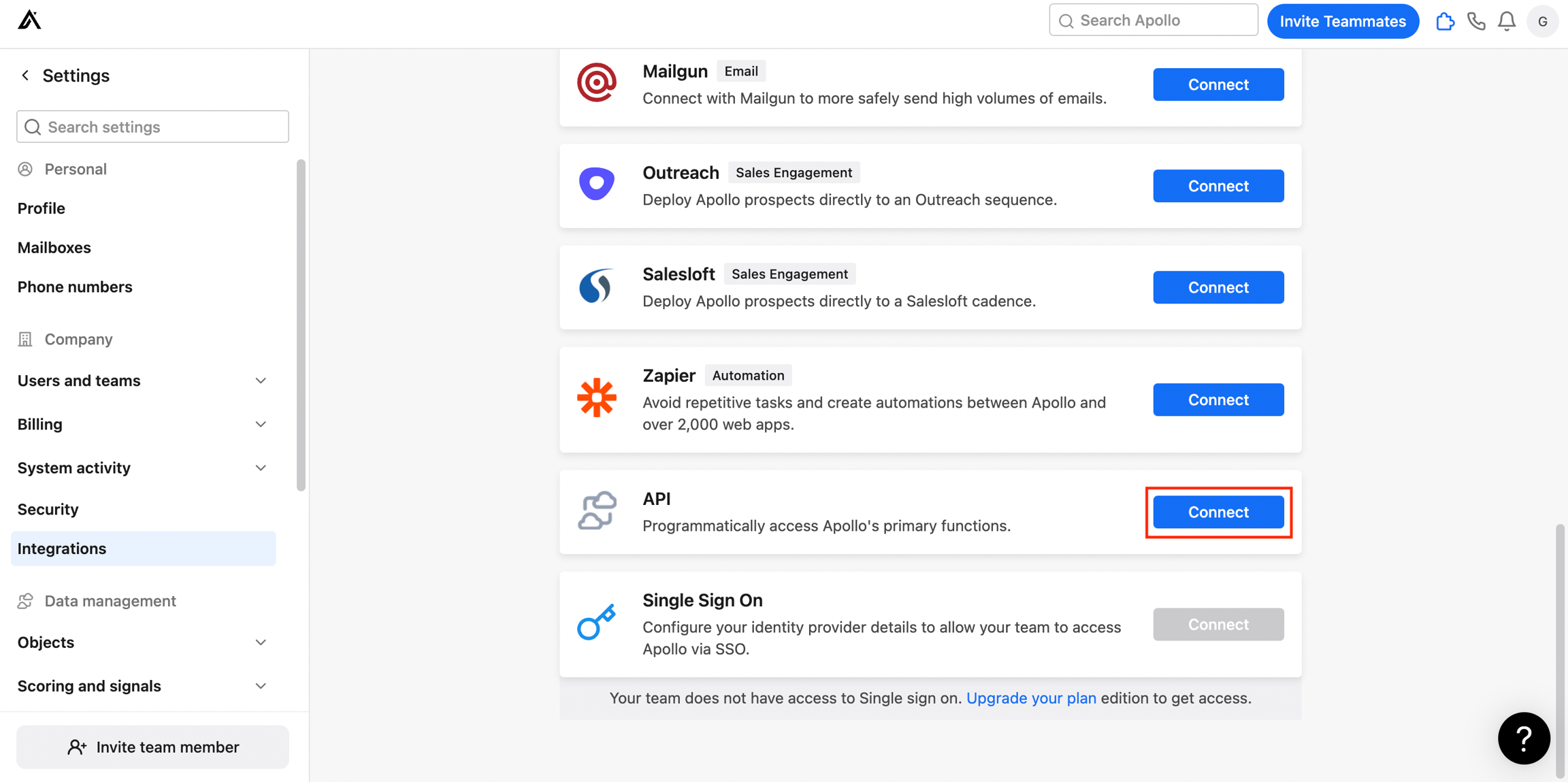
Step 4: Click Connect on the API block.
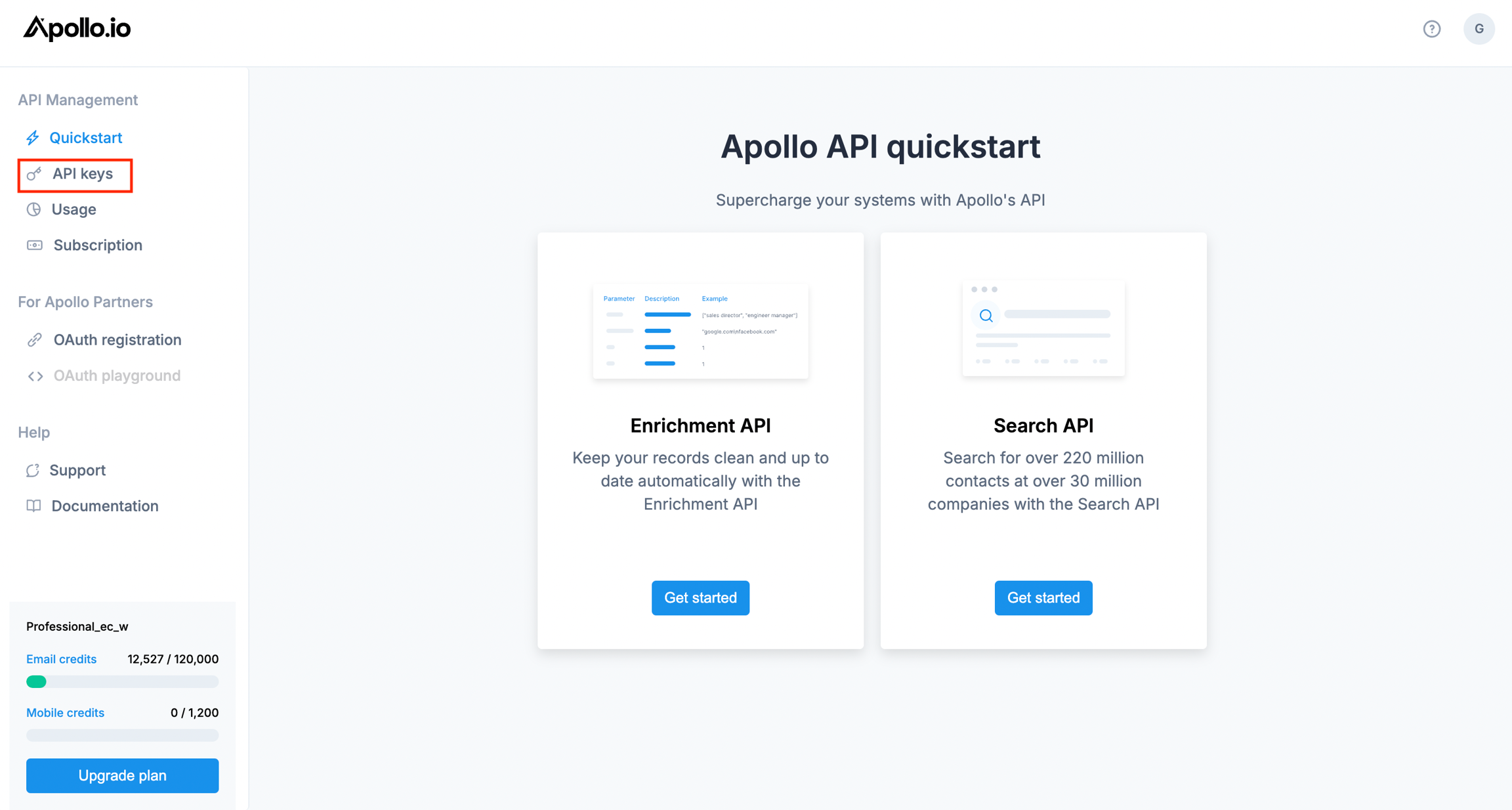
Step 5: Click API Keys on the Nav bar.
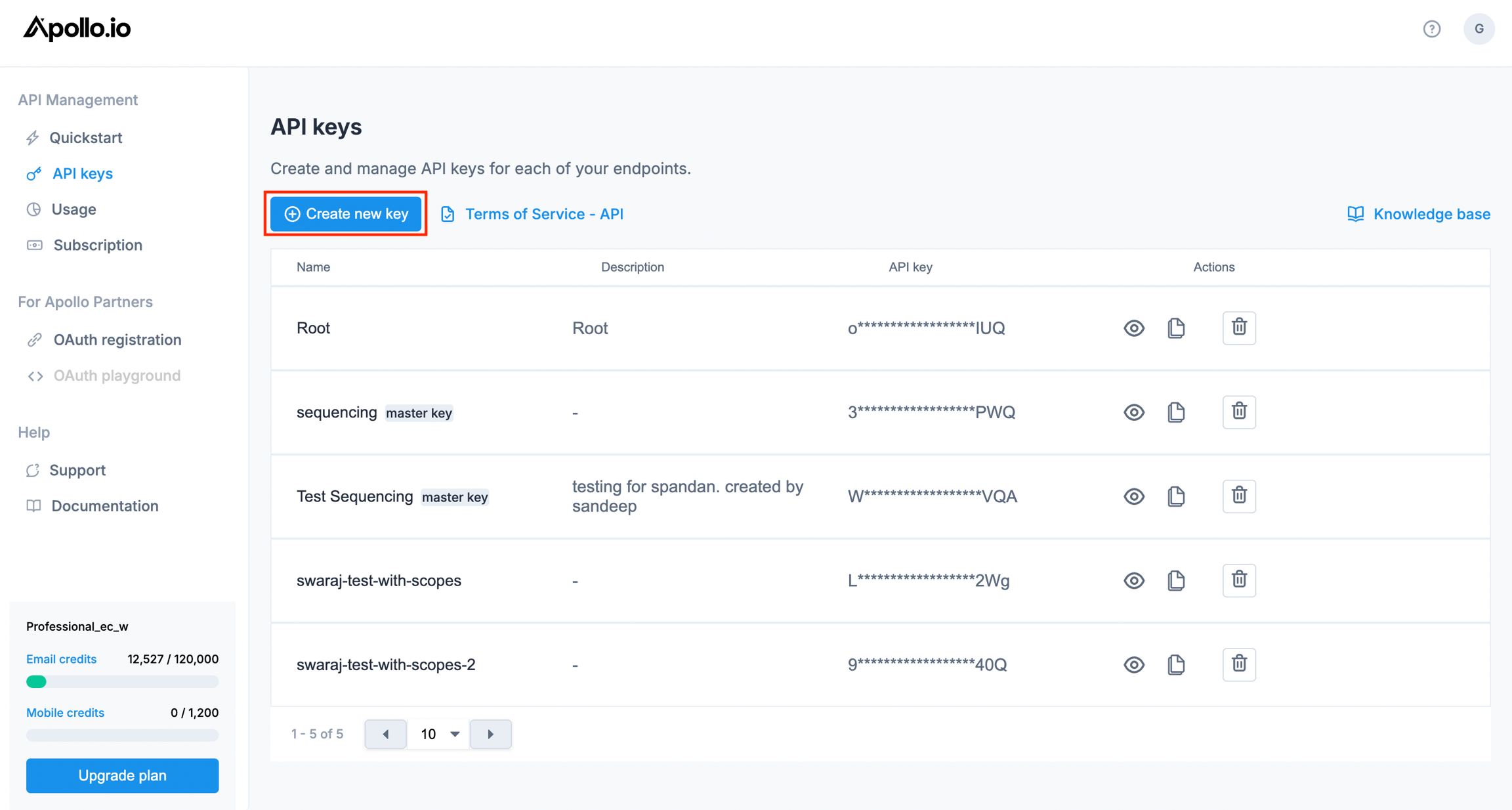
Step 6: Click on Create new key.
Step 7: In the popup, leave the APIs drop down blank and select the 'Set as Master key' option. Click Create API key.
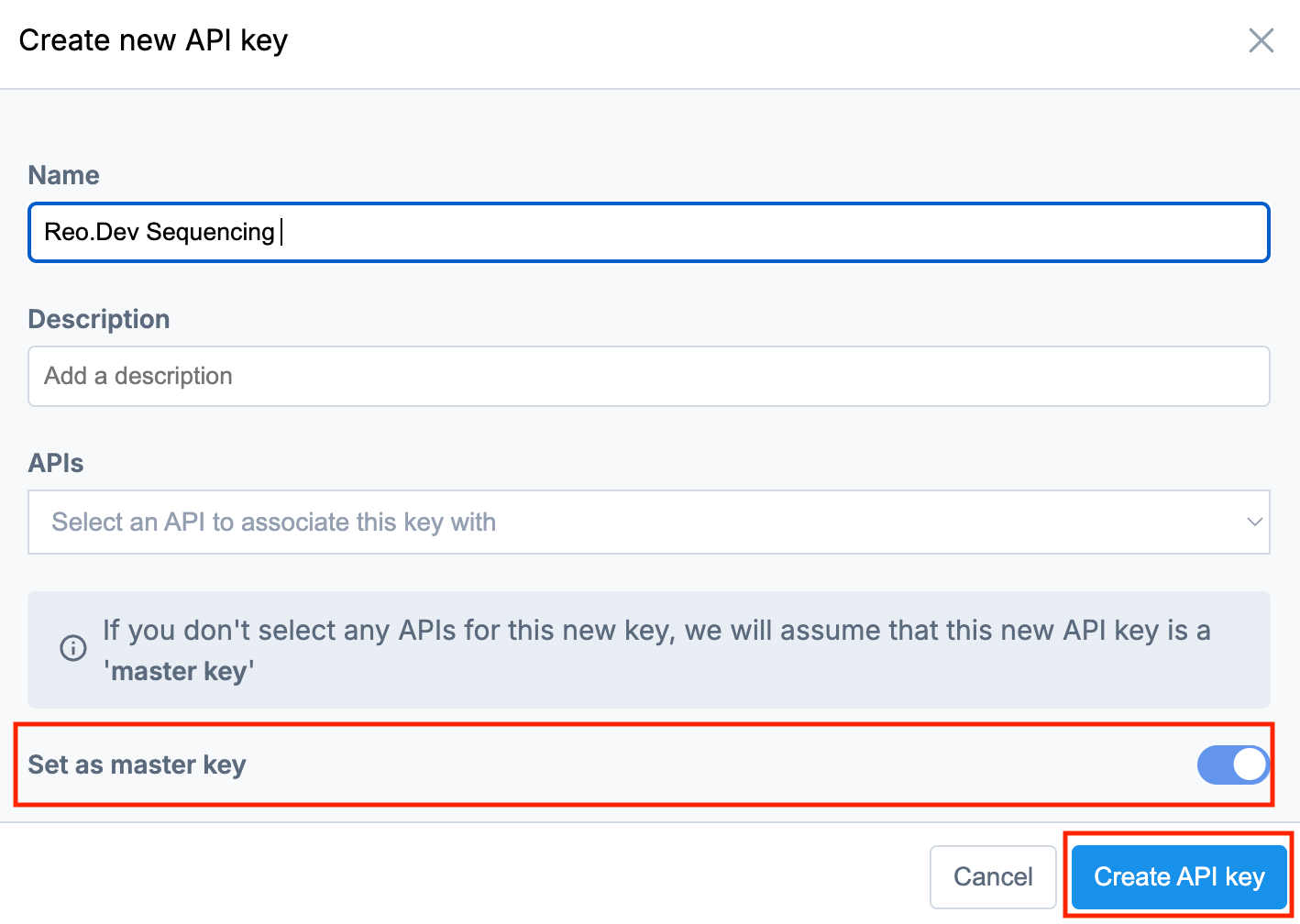
Step 8: Copy this newly created API Key.
Note - Though there could be older API keys, we suggest creating a new one for Reo.Dev integration.

Configuring Apollo.io in Reo.Dev
Step 1: Login to Reo.Dev admin account.
Step 2: Click on Integrations in the Nav bar and under Messaging Tool, click Connect for Apollo.io.

Step 3: Enter the API key and click Save

Step 4: After the API key is saved, the Sequence Settings section will show up listing all he sequences present in your Apollo.io account. You can choose to enable a specific sequence. Once done, click Save.
Quick Note: To access Apollo sequences in Reo.Dev, ensure they're shared with your team or Reo.Dev members. Here's a quick guide on sharing sequences on Apollo.

Last updated
Was this helpful?