# Salesforce

Integration with Salesforce allows Reo.Dev to send data to Salesforce as well as read lifecycle stage for contacts and accounts in Salesforce. You can connect your Salesforce App with Reo.Dev from the Integrations section.

Requirements

* You must be admin of Reo.Dev app
* You must be an admin of your Salesforce CRM instance

### Create Custom fields in Salesforce

Before we begin the Salesforce integration, we should create the following fields in Salesforce in Accounts, Contacts and Leads object respectively.

{% hint style="info" %}
**Important Note:**\
When creating the fields in Salesforce, ensure that:

* **Field Names** must be written in **lowercase**. If not, the fields will not map correctly during integration.
* Follow the specified structure and naming conventions outlined below to avoid integration errors. We recommend **copy-pasting** the values from the table directly below.
  {% endhint %}

### **Accounts**

<table><thead><tr><th>Data Type</th><th>Field Label</th><th>Field Name</th><th>Values</th><th width="90.30078125">Required</th><th width="78.5">Default</th></tr></thead><tbody><tr><td>Date</td><td>REO: Last Activity Date</td><td>reo_account_last_activity_date</td><td>-</td><td>Yes</td><td>-</td></tr><tr><td>Picklist</td><td>REO: Customer Fit Score</td><td>reo_customer_fit</td><td>STRONG, MODERATE, WEAK</td><td>Yes</td><td>-</td></tr><tr><td>Picklist</td><td>REO: Developer Activity Score</td><td>reo_developer_activity_score</td><td>HIGH, MEDIUM, LOW</td><td>Yes</td><td>-</td></tr><tr><td>Text Area (Rich)</td><td>REO: Segment Name</td><td>reo_segments_list</td><td>-</td><td>Yes</td><td>-</td></tr><tr><td>URL</td><td>REO: Account Link</td><td>reo_account_link</td><td>-</td><td>Yes</td><td>-</td></tr><tr><td>Text Area (Rich)</td><td>REO: Account Summary</td><td>reo_company_summary</td><td>-</td><td>Yes</td><td>-</td></tr><tr><td>URL</td><td>REO: LinkedIn Company Page</td><td>reo_account_linkedin</td><td>-</td><td>Yes</td><td>-</td></tr><tr><td>Text Area (Rich)</td><td>REO: Account Tag Summary</td><td>reo_tag_summary</td><td>-</td><td>Yes</td><td>-</td></tr><tr><td>Number</td><td>REO: Activity Score</td><td>reo_activity_score</td><td>-</td><td>Yes</td><td>-</td></tr><tr><td>Text Area (Rich)</td><td>REO: Audience Name</td><td>reo_audiences_list</td><td>-</td><td>Yes</td><td>-</td></tr><tr><td>Text</td><td>REO: COMPANY SOURCE</td><td>reo_company_source</td><td>-</td><td>No</td><td>-</td></tr><tr><td>Date</td><td>REO: COMPANY CREATED AT</td><td>reo_company_created_at</td><td>-</td><td>No</td><td>-</td></tr><tr><td>Date</td><td>REO: COMPANY UPDATED AT</td><td>reo_company_updated_at</td><td>-</td><td>No</td><td>-</td></tr><tr><td>Text Area (Rich)</td><td>REO: Tech Functions</td><td>reo_tech_functions_summary</td><td>-</td><td>Yes</td><td>-</td></tr></tbody></table>

{% hint style="info" %}
We recommend **copying and pasting** the values directly from the table above during field creation.
{% endhint %}

**Contacts**

<table><thead><tr><th width="117.5">Data Type</th><th width="170.765625">Field Label</th><th width="199.71875">Field Name</th><th width="75.7890625">Values</th><th>Required</th><th width="75.65625">Default</th></tr></thead><tbody><tr><td>Date</td><td>REO: Last Activity Date</td><td>reo_contact_last_activity_date</td><td>-</td><td>Yes</td><td>-</td></tr><tr><td>Text Area (Rich)</td><td>REO: Developer Summary</td><td>reo_contacts_summary</td><td>-</td><td>Yes</td><td>-</td></tr><tr><td>URL</td><td>REO: LinkedIn Profile</td><td>reo_dev_social_linkedin_link</td><td>-</td><td>Yes</td><td>-</td></tr><tr><td>Text Area (Rich)</td><td>REO: Developer Segment Name</td><td>reo_developer_segments_list</td><td>-</td><td>Yes</td><td>-</td></tr><tr><td>Text Area (Rich)</td><td>REO: Contact Tag Summary</td><td>reo_tag_summary</td><td>-</td><td>Yes</td><td>-</td></tr><tr><td>Number</td><td>REO: Activity Score</td><td>reo_activity_score</td><td>-</td><td>Yes</td><td>-</td></tr><tr><td>Text Area (Rich)</td><td>REO: Audience Name</td><td>reo_audiences_list</td><td>-</td><td>Yes</td><td>-</td></tr><tr><td>Text</td><td>REO: CONTACT SOURCE</td><td>reo_contacts_source</td><td>-</td><td>No</td><td>-</td></tr><tr><td>Date</td><td>REO: CONTACT CREATED AT</td><td>reo_contacts_created_at</td><td>-</td><td>No</td><td>-</td></tr><tr><td>Date</td><td>REO: CONTACT UPDATED AT</td><td>reo_contacts_updated_at</td><td>-</td><td>No</td><td>-</td></tr></tbody></table>

{% hint style="info" %}
We recommend **copying and pasting** the values directly from the table above during field creation.
{% endhint %}

### **Leads**

<table><thead><tr><th>Data Type</th><th width="180.6015625">Field Label</th><th width="177.890625">Field Name</th><th width="78.82421875">Values</th><th width="89.5546875">Required</th><th width="90.90625">Default</th></tr></thead><tbody><tr><td>Date</td><td>REO: Last Activity Date</td><td>reo_leads_last_activity_date</td><td>-</td><td>Yes</td><td>-</td></tr><tr><td>Text Area (Rich)</td><td>REO: Developer Summary</td><td>reo_leads_summary</td><td>-</td><td>Yes</td><td>-</td></tr><tr><td>URL</td><td>REO: LinkedIn Profile</td><td>reo_leads_social_linkedin_link</td><td>-</td><td>Yes</td><td>-</td></tr><tr><td>Text Area (Rich)</td><td>REO: Developer Segment Name</td><td>reo_leads_segments_list</td><td>-</td><td>Yes</td><td>-</td></tr><tr><td>Text Area (Rich)</td><td>REO: Contact Tag Summary</td><td>reo_leads_tag_summary</td><td>-</td><td>Yes</td><td>-</td></tr><tr><td>Number</td><td>REO: Activity Score</td><td>reo_activity_score</td><td>-</td><td>Yes</td><td>-</td></tr><tr><td>Text Area (Rich)</td><td>REO: Audience Name</td><td>reo_audiences_list</td><td>-</td><td>Yes</td><td>-</td></tr><tr><td>Text</td><td>REO: LEAD SOURCE</td><td>reo_leads_source</td><td>-</td><td>No</td><td>-</td></tr><tr><td>Date</td><td>REO: LEADS CREATED AT</td><td>reo_leads_created_at</td><td>-</td><td>No</td><td>-</td></tr><tr><td>Date</td><td>REO: LEAD UPDATED AT</td><td>reo_leads_updated_at</td><td>-</td><td>No</td><td>-</td></tr></tbody></table>

{% hint style="info" %}
We recommend **copying and pasting** the values directly from the table above during field creation.
{% endhint %}

### Connect Salesforce

**Step 1**: Navigate to Settings -> **Integrations**&#x20;

<figure><img src="https://2705882080-files.gitbook.io/~/files/v0/b/gitbook-x-prod.appspot.com/o/spaces%2Fx46P5sAHxDG7PqOdVLxI%2Fuploads%2FX2dr3mVSgYFUohFmR8Ej%2Fimage.png?alt=media&#x26;token=8848674b-e8e0-41ee-9d7d-2033b3df7ee8" alt=""><figcaption></figcaption></figure>

**Step 2:** Go to > Output Integrations > CRM and click on **Connect** in the Salesforce card.&#x20;

**Step 3:** You will be redirected to the Authorization flow of Salesforce wherein you will need to provide your Salesforce Admin credentials. After that you will need to select the Salesforce App to connect and provide permission to Reo.Dev app to access Salesforce.

![](https://usercontent.us.prod.clueso.io/d06f019c-da0b-4d5b-9fdd-9630e7fd5d0f/3e6e4bbf-4dc8-4234-844a-43af088d81dc/84057b6b-dec8-4df5-9f2f-3069a3bc27e5/images/dddd5741-738e-44a8-960c-788dd0cc9a90.png)

### Salesforce Export settings

After the Salesforce App is connected, you will be redirected to Salesforce settings screen to configure the Export and Sync settings.

<figure><img src="https://2705882080-files.gitbook.io/~/files/v0/b/gitbook-x-prod.appspot.com/o/spaces%2Fx46P5sAHxDG7PqOdVLxI%2Fuploads%2FAEcLRHqoOVS9Mh0d8wey%2Fimage.png?alt=media&#x26;token=52d0f95b-9eb6-4a55-8989-4743d5861e34" alt=""><figcaption></figcaption></figure>

There are two options to Export data from Reo.Dev:

1. **Accounts**

   You can select Accounts if you want to only export accounts from Reo.Dev to Salesforce.
2. **Accounts and Contacts**

   You can select Accounts and Contacts if you want to only export accounts from Reo.Dev to Salesforce. Under Accounts and Contacts, you have an option to sync contacts associated with an account automatically or manually. If you select manually, the users will have need to select contacts from the developers tab for each account and click on **Send to Salesforce.**

### Salesforce Field Mapping

Map all the fields from Reo.Dev that you want to send to Salesforce and update existing Accounts, Contacts and Leads. This mapping will be used to create new accounts, contacts and leads in Salesforce. You can also select which fields should be updated in Salesforce whenever there is any change in Reo.Dev

Please note that when we export data from Reo.Dev, we check if the company or contact exists in the Salesforce record or not. If the record is present, we update the corresponding fields based on the mapping preference selected by you and in case the record is not present, we create a new record.

We use the following fields as unique identifiers to prevent duplication:

* Accounts → Company Domain Name
* Contact → email ID

### **Accounts Field Mapping**

We have provision to export the following fields for the Accounts object to Salesforce.

| **Reo.Dev Field**            | **Salesforce Field**          |
| ---------------------------- | ----------------------------- |
| Company Name                 | Company Name                  |
| Company Domain               | Company Domain Name           |
| Country                      | Country/Region                |
| State                        | State                         |
| City                         | City                          |
| Employee Range               | Employee Range                |
| Annual Revenue               | Annual Revenue                |
| Founded In                   | Year Founded                  |
| Last Activity Date           | REO: Last Activity Date       |
| LinkedIn Company Page        | LinkedIn Company Page         |
| REO Customer Fit Score       | REO: Customer Fit             |
| REO Developer Activity Score | REO: Developer Activity Score |
| REO: Activity Score          | REO: Activity Score           |
| REO Segment Name             | REO: Segment Name             |
| REO Account Link             | REO: Account Link             |
| REO Account Summary          | REO: Account Summary          |
| REO Tags                     | REO: Account Tags             |
| REO: Company Audience        | REO: Audience Name            |

* **Company Domain** is a mandatory field and is already mapped.
* Fields with the prefix REO are automatically created in Salesforce and mapped to the corresponding Reo.Dev field.
* For the Rest of the fields, you can map the corresponding field in Salesforce from the dropdown. If you select the Auto Overwrite checkbox, then we will overwrite the existing data in Salesforce during creation and sync operations.

{% hint style="success" %}
**Recommendation:** Fields with the prefix REO should always have the Auto-Overwrite checkbox as TRUE.
{% endhint %}

### **Contacts Field Mapping**

**Step 1:** Select the **target object.**

Reo.Dev has one Contact type but since Salesforce has two Objects - Leads and Contacts, you can select the object where the Reo.Dev contact should be created.

<figure><img src="https://2705882080-files.gitbook.io/~/files/v0/b/gitbook-x-prod.appspot.com/o/spaces%2Fx46P5sAHxDG7PqOdVLxI%2Fuploads%2FvqYiwCufgdUtrdmErhWW%2Fimage.png?alt=media&#x26;token=d2670bef-9a0a-42c6-b594-e53b26b9de80" alt=""><figcaption></figcaption></figure>

**Step 2: Map fields**

You’ll see 2 tabs here - mapping for leads object and mapping for contact object.

If you select leads as the target object —> you will need to provide mapping for both leads and contacts object.

If you select contact as the target object —> The mapping with leads tab is automatically disabled and you need to provide the mapping only for the contacts object.

{% hint style="info" %}
**Note:** Once a lead is converted into a contact on Salesforce then Reo.Dev will no longer treat that record as a lead. Instead, Reo.Dev will update the contact record directly and not create a duplicate lead for the same developer.
{% endhint %}

We have provision to export the following fields for Contacts and Leads object to Salesforce.

### **For Contact object:**

| **Reo.Dev Field**      | **Salesforce Field**        |
| ---------------------- | --------------------------- |
| First Name             | First Name                  |
| Last Name              | Last Name                   |
| Business Email ID\*    | Email                       |
| Company Website        | Website URL                 |
| Designation            | Job Title                   |
| Country                | Country/Region              |
| State                  | State                       |
| City                   | City                        |
| LinkedIn ID            | REO: Linked In Profile      |
| Last Activity Date     | REO: Last Activity Date     |
| REO: Developer Summary | REO: Developer Summary      |
| REO: Segment Name      | REO: Developer Segment Name |
| REO: Tags              | REO: Developer Tags         |
| REO: Activity Score    | REO: Activity Score         |
| REO: Audience Name     | REO: Audiences List         |

### **For Lead Object:**

| **Reo.Dev Field**      | **Salesforce Field**        |
| ---------------------- | --------------------------- |
| First Name             | First Name                  |
| Last Name              | Last Name                   |
| Business Email ID\*    | Email                       |
| Company Website        | Website URL                 |
| Designation            | Job Title                   |
| Country                | Country/Region              |
| State                  | State                       |
| City                   | City                        |
| LinkedIn ID            | REO: Linked In Profile      |
| Last Activity Date     | REO: Last Activity Date     |
| REO: Developer Summary | REO: Developer Summary      |
| REO: Segment Name      | REO: Developer Segment Name |
| REO: Tags              | REO: Developer Tags         |
| REO: Activity Score    | REO: Activity Score         |
| REO: Audience Name     | REO: Audiences List         |

{% hint style="warning" %}
**Note:** If the admin changes the preferred target object in the future, all existing mappings and settings will be lost. However, any data previously sent to the CRM will remain as-is and will not be updated. Once the new setting is applied, all future data will be sent to the newly selected object.
{% endhint %}

* **Business email ID** is a mandatory field and is already mapped. We fetch the Business email ID of the developers from third part enrichment service providers.
* In addition to the Business Email ID, **Personal Email IDs** will also be synced **if collected through first-party sources**, including:
  * Signup Forms on your website or documentation pages
  * Product login or signup forms.
* In the Reo.Dev UI, when users hover over the email icon on a profile, if a Personal Email has been enriched and mapped to that profile, it will be displayed alongside the Work Email.
* Fields with the prefix REO are automatically created in Salesforce and mapped to the corresponding Reo.Dev field
* For the Rest of the fields, you can map the corresponding field in Salesforce from the dropdown. If you select the Auto Overwrite checkbox, then we will overwrite the existing data in Salesforce during the creation and sync operations.

***

### **How Reo.Dev Handles Multiple Email Records in Salesforce**

For each **unique email ID** we treat it as a **separate record** in Salesforce. Depending on whether an email already exists in the CRM, the record is either **updated or created** as per the following scenarios:

| **Scenario**                                      | **Action in Salesforce**                                                       |
| ------------------------------------------------- | ------------------------------------------------------------------------------ |
| **One Email ID exists in CRM**                    | Update existing contact with latest REO data                                   |
| **One Email ID does not exist in CRM**            | Create a new contact record                                                    |
| **Two Email IDs → First exists, second does not** | Update existing contact for first email, create a new contact for second email |
| **Two Email IDs → Neither exists**                | Create two separate contact records (one for each email)                       |
| **Two Email IDs → Both exist in CRM**             | Update both contacts separately with latest REO data                           |

***

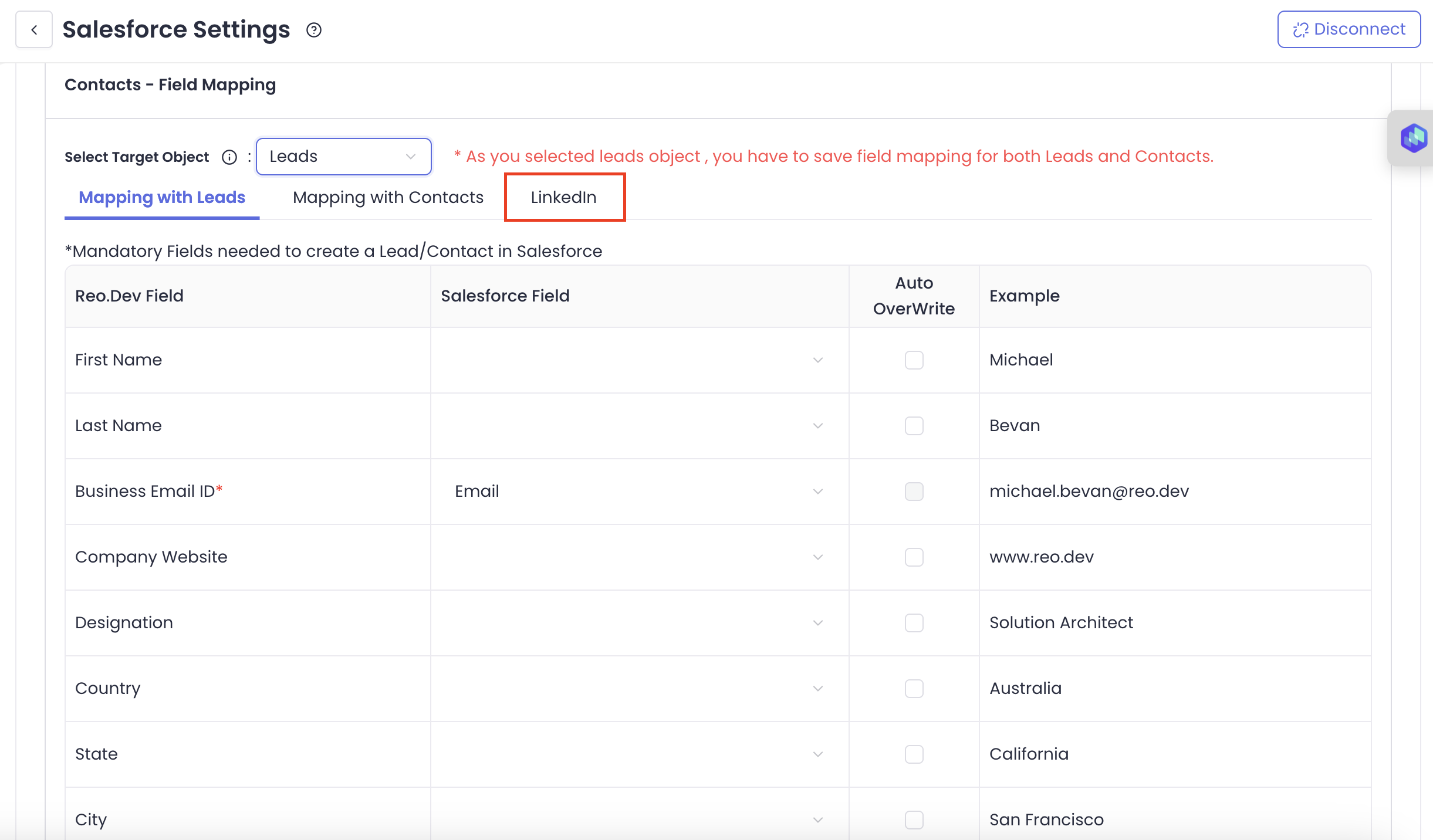
### Send developers only with LinkedIn ID to CRM&#x20;

You can send contacts/leads with only LinkedIn IDs to Salesforce. If the email ID is not available for a developer, Reo will match contacts/leads by the LinkedIn profile to avoid duplicates and create/update contacts and leads.&#x20;

To enable this, click on the LinkedIn tab under contacts - Field Mapping

<figure><img src="https://2705882080-files.gitbook.io/~/files/v0/b/gitbook-x-prod.appspot.com/o/spaces%2Fx46P5sAHxDG7PqOdVLxI%2Fuploads%2FzbhO5nHjLgb7gNUU1D2o%2Fimage.png?alt=media&#x26;token=e264a660-da8f-460e-95ab-7999ae1899a0" alt=""><figcaption></figcaption></figure>

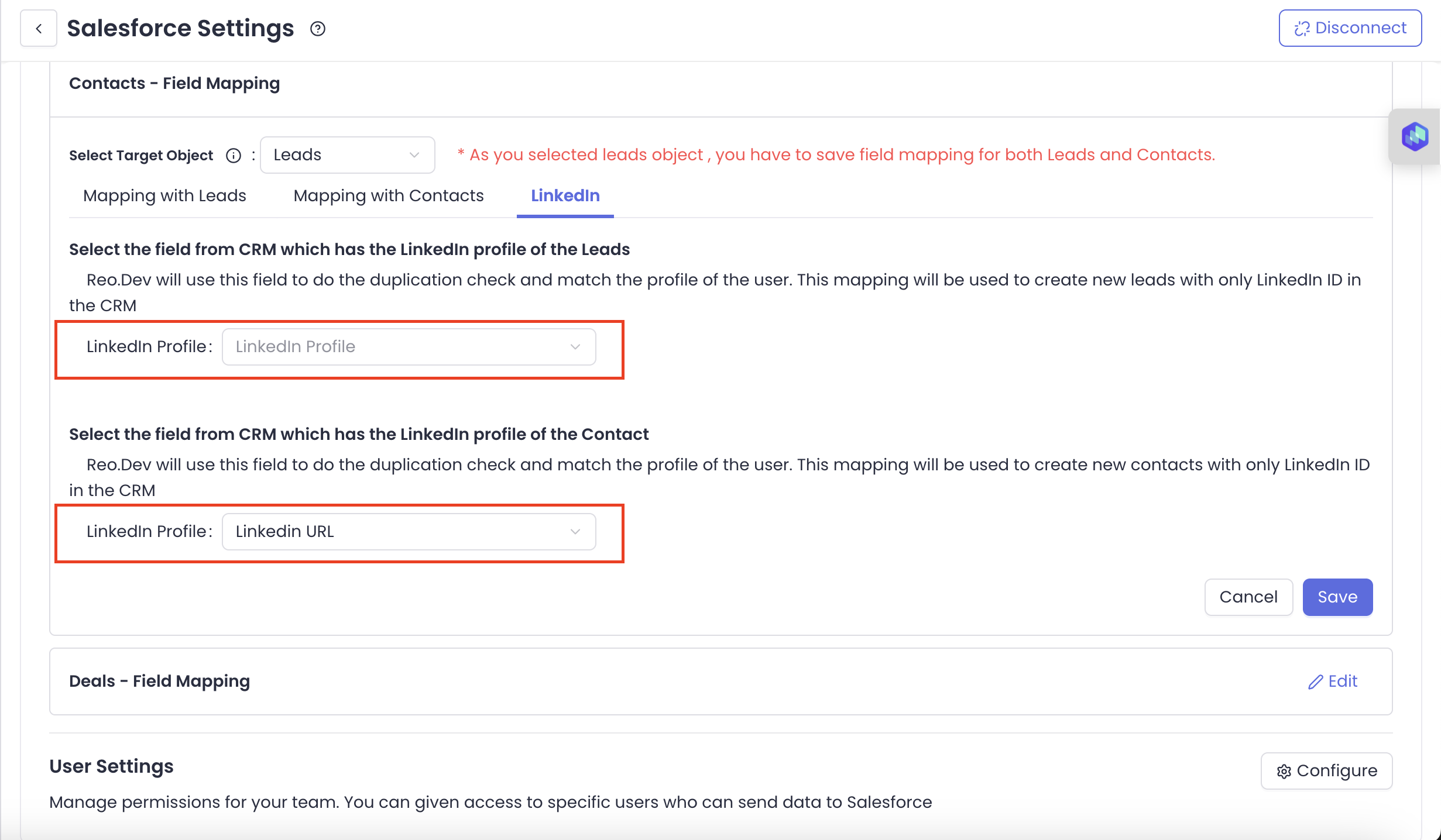
Next, select your custom LinkedIn profile field to map the contacts and leads. And in case you are using the custom field created by Reo as the preferred field for mapping the LinkedIn profile - then choose REO:LinkedIn Profile as the field from the drop-down.&#x20;

{% hint style="info" %}
Note: You will need to map this field for both contacts and leads if you've chosen Leads as the target object.&#x20;
{% endhint %}

<figure><img src="https://2705882080-files.gitbook.io/~/files/v0/b/gitbook-x-prod.appspot.com/o/spaces%2Fx46P5sAHxDG7PqOdVLxI%2Fuploads%2FLYE1BykiYsqgdAPT8fuQ%2Fimage.png?alt=media&#x26;token=5575880e-473d-4662-bd6c-11675877a7c6" alt=""><figcaption></figcaption></figure>

Once done, click on save.&#x20;

{% hint style="info" %}

### Quick Note on how this works:&#x20;

**Scenario 1: If LinkedIn Profile Mapping is not present:**

* Only developers with a valid email ID (business or First party) are created/updated in CRM
* LinkedIn profile is updated to REO: LinkedIn Profile field

**Scenario 2: If LinkedIn Mapping is present:**

* **In case, email and LinkedIn ID are both available:**&#x20;
  * Sync is done using only the email ID of the developer
* **In case, only Email is available**
  * Sync is done using the email ID of the developer
* **In case, only LinkedIn is available**

  The System checks for the LinkedIn ID present in Reo in the LinkedIn profile field mapping

  * If the LinkedIn ID is found
    * Developer is synced to the existing profile
  * If the LinkedIn ID is not found
    * A new contact is created in Hubspot with the LinkedIn ID as the unique identifier. From the next sync, the same contact is updated
      {% endhint %}

***

### **Do We Delete Data from Your CRM?**

Reo.Dev does **not delete any data** from your connected Salesforce CRM instance with Reo.Dev — with the **only exception being occasional cleanups** of records that were originally created by Reo.Dev.

These cleanups are **rare and limited strictly to Reo.Dev-originated data**, and are performed to maintain data accuracy and reliability. For example, if a developer contact's work email becomes invalid (e.g., they’ve switched jobs), and a new valid email is identified, Reo.Dev may update or clean up the outdated email to ensure your CRM reflects the most current information.

Rest assured, no third-party or manually added CRM data is ever deleted by Reo.Dev.

***

#### **What Happens When a Contact is Updated?**

* If an email already exists in Salesforce, Reo.Dev **updates the mapped fields** (as configured in CRM settings) with the latest developer data.
* Updates **do not overwrite existing CRM data outside the mapped REO fields**.

***

### **How New Contact Records Are Linked to the Same Company/Account**

When Reo.Dev creates new contacts, all the captured data—including the **Company Website (Domain Name)**, job title, LinkedIn profile, and other mapped fields—remains the same across contact records associated with the same company.

**This ensures that:**

* You can easily identify multiple contacts belonging to the same organization in Salesforce.
* Company-wide insights remain consistent, regardless of whether contacts have different email IDs.
* Your CRM data stays structured and organized, preventing fragmented company records.

By maintaining consistent company-level details, Reo.Dev enables seamless account-based contact tracking, helping sales and marketing teams engage with all relevant stakeholders.

***

{% hint style="success" %}
**Note:** Fields with the prefix REO should always have the Auto-Overwrite checkbox as **TRUE.**
{% endhint %}

### **Send Tags to Your CRM**

You can now send **Account Tags** and **Developer Tags** directly to your CRM. These tags are fully customizable and provide quick context and insights on already enriched data.

**Why it matters:**\
Tags make it easy to:

* Identify key account traits or developer activities at a glance.
* Segment and prioritize accounts more effectively.
* Provide your sales team with richer, actionable insights to drive better conversations.

**Want to learn more?**\
Check out our [Tags Handbook](https://www.reo.dev/tags-handbook) — a comprehensive guide to tagging and segmenting developers in Reo.Dev. It includes **15+ use case examples** designed to help DevTools GTM teams prospect smarter, increase pipeline, and close deals faster.

***

#### CRM to Revenue Playbooks

* [Revive Cold Opportunities in your CRM Using Developer Activity Signals](https://www.reo.dev/playbook/revive-cold-opportunities-in-your-crm-using-developer-activity-signals)
* [Monitor Dev Activity in your assigned CRM accounts](https://www.reo.dev/playbook/monitor-dev-activity-in-your-assigned-crm-accounts)
* [Detect Deal Stalls Early: Monitor & Act on Active CRM Opportunities](https://www.reo.dev/playbook/detect-deal-stalls-early-monitor-act-on-active-crm-opportunities)

**Explore the Playbooks Now** → [View All](https://www.reo.dev/playbook-collection/crm)

***

### User Settings

You can manage permissions for your team by defining specific users who can send data to Salesforce.

Click on **Configure** in User Settings.

<figure><img src="https://2705882080-files.gitbook.io/~/files/v0/b/gitbook-x-prod.appspot.com/o/spaces%2Fx46P5sAHxDG7PqOdVLxI%2Fuploads%2FFuAcgdNxZfjF54vZVnQ4%2Fimage.png?alt=media&#x26;token=86f9dc6b-41c0-44c5-bd1d-e07161cfb9ce" alt=""><figcaption></figcaption></figure>

You will be redirected to Users Section. You can turn on the toggle button in the CRM access column to allow specific users to send data to HubSpot.

<figure><img src="https://2705882080-files.gitbook.io/~/files/v0/b/gitbook-x-prod.appspot.com/o/spaces%2Fx46P5sAHxDG7PqOdVLxI%2Fuploads%2FKrNJ5Z3YrAVNQEJqt3SU%2Fimage.png?alt=media&#x26;token=eaf42b31-9f84-40f6-bf87-cb874ba8bb10" alt=""><figcaption></figcaption></figure>

### **Export and Sync Frequency**

Users will have options to send:

* **Segments to Salesforce**

  Users can create a segment and click on **Send to Salesforce.**
* **Accounts to Salesforce**

  Users can select an account(s) from the Account list and **Send to Salesforce.**
* **Developers to Salesforce**

  If Manual contact sync is selected for contacts, users can select developer(s) from the developer tab under Account Details screen and **Send to Salesforce.**

In the case of Accounts and Developer, the export happens in real-time and the Salesforce icon will appear against the record on UI immediately but for segments, it may take some time depending on the size of the segment.

Once the Accounts and Developers are exported, Reo.Dev will sync data back to Salesforce daily. All the accounts and developers that have been synced with Salesforce, will have a Salesforce Icon next to the name.

***

### Map and Tag Custom CRM Account and Deal Stages

**Map Account Stages**

Select the **"Stages"** subtab in the Account Mapping section.

<figure><img src="https://2705882080-files.gitbook.io/~/files/v0/b/gitbook-x-prod.appspot.com/o/spaces%2Fx46P5sAHxDG7PqOdVLxI%2Fuploads%2FvSlfjbWVCTLuTDaKs3BY%2Fimage.png?alt=media&#x26;token=dda78150-5196-4b7e-aeed-71adfb4fa165" alt=""><figcaption></figcaption></figure>

Choose a **Custom Account CRM** field to map as the **Account Lifecycle Stage**.

{% hint style="info" %}
**Note:** Only fields classified as **"Picklist"** in your CRM are available for selection.
{% endhint %}

<figure><img src="https://2705882080-files.gitbook.io/~/files/v0/b/gitbook-x-prod.appspot.com/o/spaces%2Fx46P5sAHxDG7PqOdVLxI%2Fuploads%2FFo9JKHqpSlMqHZrUef0T%2Fimage.png?alt=media&#x26;token=cd0f038f-3cd9-4878-b927-23990786c018" alt=""><figcaption></figcaption></figure>

Pick all Custom CRM Account Stages you want to define as **"Customer"** in **Reo.Dev**. Multiple stages can be mapped as "Customer" to fit your sales cycle. For example, classify accounts by product line (Cloud vs. Open Source) or customer size (Enterprise vs. SMB).

<figure><img src="https://2705882080-files.gitbook.io/~/files/v0/b/gitbook-x-prod.appspot.com/o/spaces%2Fx46P5sAHxDG7PqOdVLxI%2Fuploads%2FKcTLqHHmx7h4kFryoDhN%2Fimage.png?alt=media&#x26;token=2ca3ca9e-e4f6-47cf-93c7-555c35214fac" alt=""><figcaption></figcaption></figure>

**Save the Configuration**

After mapping, click **Save**.

{% hint style="info" %}
**Note:** Backend updates are applied immediately, but changes in the UI reflecting the new mappings will take up to **24 hours** to refresh.
{% endhint %}

**Map Opportunity Stages**

<figure><img src="https://2705882080-files.gitbook.io/~/files/v0/b/gitbook-x-prod.appspot.com/o/spaces%2Fx46P5sAHxDG7PqOdVLxI%2Fuploads%2Fd6mLgAqxgJ9hgRiGRmm0%2Fimage.png?alt=media&#x26;token=cc99ae12-a11e-46da-b5c8-497e1f99ea24" alt=""><figcaption></figcaption></figure>

Select the custom deal/opportunity stage field from your Salesforce CRM.

{% hint style="info" %}
**Note:** Only fields classified as **"Picklist"** in your CRM are available for selection.
{% endhint %}

<figure><img src="https://2705882080-files.gitbook.io/~/files/v0/b/gitbook-x-prod.appspot.com/o/spaces%2Fx46P5sAHxDG7PqOdVLxI%2Fuploads%2FEf2d3heIKjOcY0nSm6Cf%2Fimage.png?alt=media&#x26;token=596404ab-2f56-4762-98c3-f34e5a3fa60f" alt=""><figcaption></figcaption></figure>

**Save the Configuration**

After mapping, click **Save.**

{% hint style="info" %}
**Note:** Backend updates are applied immediately, but changes in the UI reflecting the new mappings will take up to **24 hours** to refresh.
{% endhint %}

#### Learn More About Custom CRM Stages

To dive deeper into setting up and leveraging **Custom CRM Account and Opportunity Stages**, refer to our detailed [Custom CRM Stages](https://docs.reo.dev/accounts/custom-crm-stages) guide for step-by-step guidance, use cases, and advanced tips to maximize the value of your Salesforce CRM integration with Reo.Dev.

***

### Disconnect Salesforce

You can disconnect Salesforce from the Integrations section:

1. Navigate to **Integrations → CRM** and click **Configure**
2. Under **Salesforce** and click on Disconnect at the top right corner

{% hint style="info" %}
Please note that all the field mappings and user permissions will be lost.
{% endhint %}