> For the complete documentation index, see [llms.txt](https://docs.reo.dev/llms.txt). Markdown versions of documentation pages are available by appending `.md` to page URLs; this page is available as [Markdown](https://docs.reo.dev/integrations/input-sources/owned-communities/slack.md).
# Slack
### Overview
**Developers who join and engage in your Slack community are showing real interest, but most of that activity is anonymous by default**: a username and an avatar, disconnected from any account or company.
Connecting Slack to Reo.dev closes that gap.
Once connected, **Reo.dev deanonymizes that activity, maps developers to the right accounts, and connects their Slack engagement with everything else you're tracking:** website visits, docs activity, product usage, GitHub activity, and more.
**GTM teams get a live view of who's actually engaging in the community, not just a wall of usernames.**
***
### Before you start
* You need **Admin role** access in Reo.dev to set up this integration.
* You need to be a **Slack Workspace admin** to authorize the connection. Slack requires this for any app added to a workspace.
These are two separate requirements. You need both, even if you're already an admin in Reo.dev.
***
### Connect your Slack workspace
1. From the left menu, navigate to **Settings → Integrations**.
2. Find the **Slack** card under **Owned Communities** and click **Connect**.
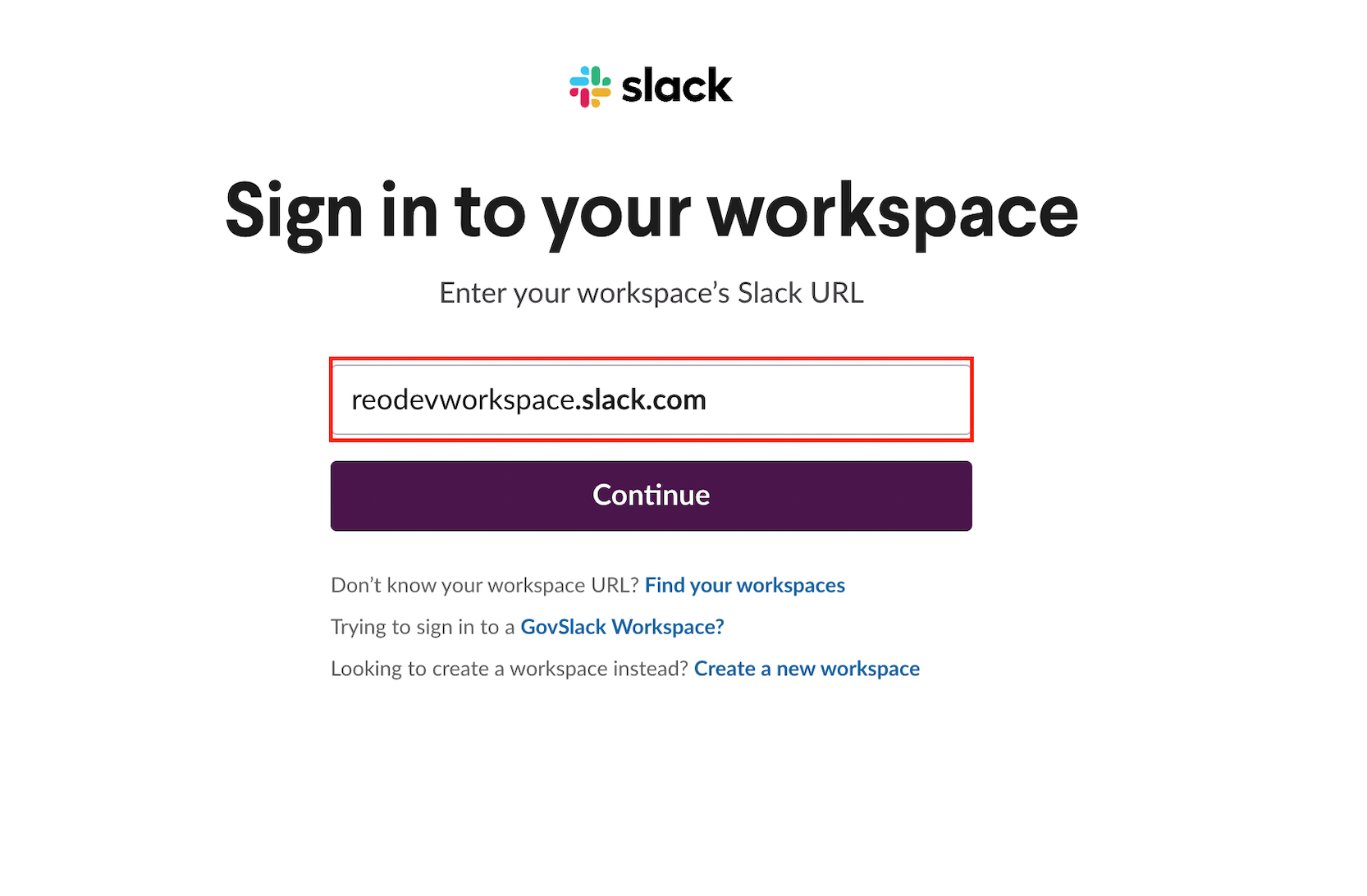
3. Enter your workspace URL and click **Continue**.
{% hint style="info" icon="circle-question" %}
**What's a workspace URL, and where do I find it?**\
\
Your Slack workspace's web address. It looks like `yourcompany.slack.com`, and you'll see it in your browser's address bar whenever you're signed in to Slack on the web.
{% endhint %}
4. On Slack's authorization page, click **Allow**. This grants Reo.dev view-only access: your identity, and messages and basic info in your workspace's **public channels**. Private channels aren't included, Slack doesn't allow external apps to access those.
5. You're connected.
{% hint style="info" %}
**Tip:** Once connected, you can view Slack activity in the Insights page, Activity Timeline, and Developer Profile. You can also use Slack activity as a filter in Segments to find developers or accounts who've taken specific actions in your Slack community.
{% endhint %}
---
# Agent Instructions
This documentation is published with GitBook. GitBook is the documentation platform designed so that both humans and AI agents can read, navigate, and reason over technical content effectively. Learn more at gitbook.com.
## Querying This Documentation
If you need additional information that is not directly available in this page, you can query the documentation dynamically by asking a question.
Perform an HTTP GET request on the current page URL with the `ask` query parameter, and the optional `goal` query parameter:
```
GET https://docs.reo.dev/integrations/input-sources/owned-communities/slack.md?ask=&goal=
```
`ask` is the immediate question: it should be specific, self-contained, and written in natural language.
`goal` is optional and describes the broader end goal you are ultimately trying to accomplish on behalf of the user. GitBook uses it to tailor the answer towards what is most useful for that goal.
The response will contain a direct answer to the question and relevant excerpts and sources from the documentation.
Use this mechanism when the answer is not explicitly present in the current page, you need clarification or additional context, or you want to retrieve related documentation sections.