> For the complete documentation index, see [llms.txt](https://docs.reo.dev/llms.txt). Markdown versions of documentation pages are available by appending `.md` to page URLs; this page is available as [Markdown](https://docs.reo.dev/faqs-and-troubleshooting/how-to-exclude-competitors-from-my-segments-in-reo.dev.md).
# How to Exclude Competitors from My Segments in Reo.Dev?
When creating account segments in Reo.Dev, you may want to exclude competitor accounts from your targeting. This can be easily done by uploading a competitor account list and applying it as a filter when building segments.
***
#### **Step 1: Upload Your Competitor Account List**
Before excluding competitors in segments, you need to upload a list of competitor domains to **My Lists** in Reo.Dev.

Use this sample CSV format when creating and uploading your competitor domain list. Ensure that the **"Company Domain Name"** column includes all competitor domains you want to exclude from your account segments.
**How to Upload the List:**
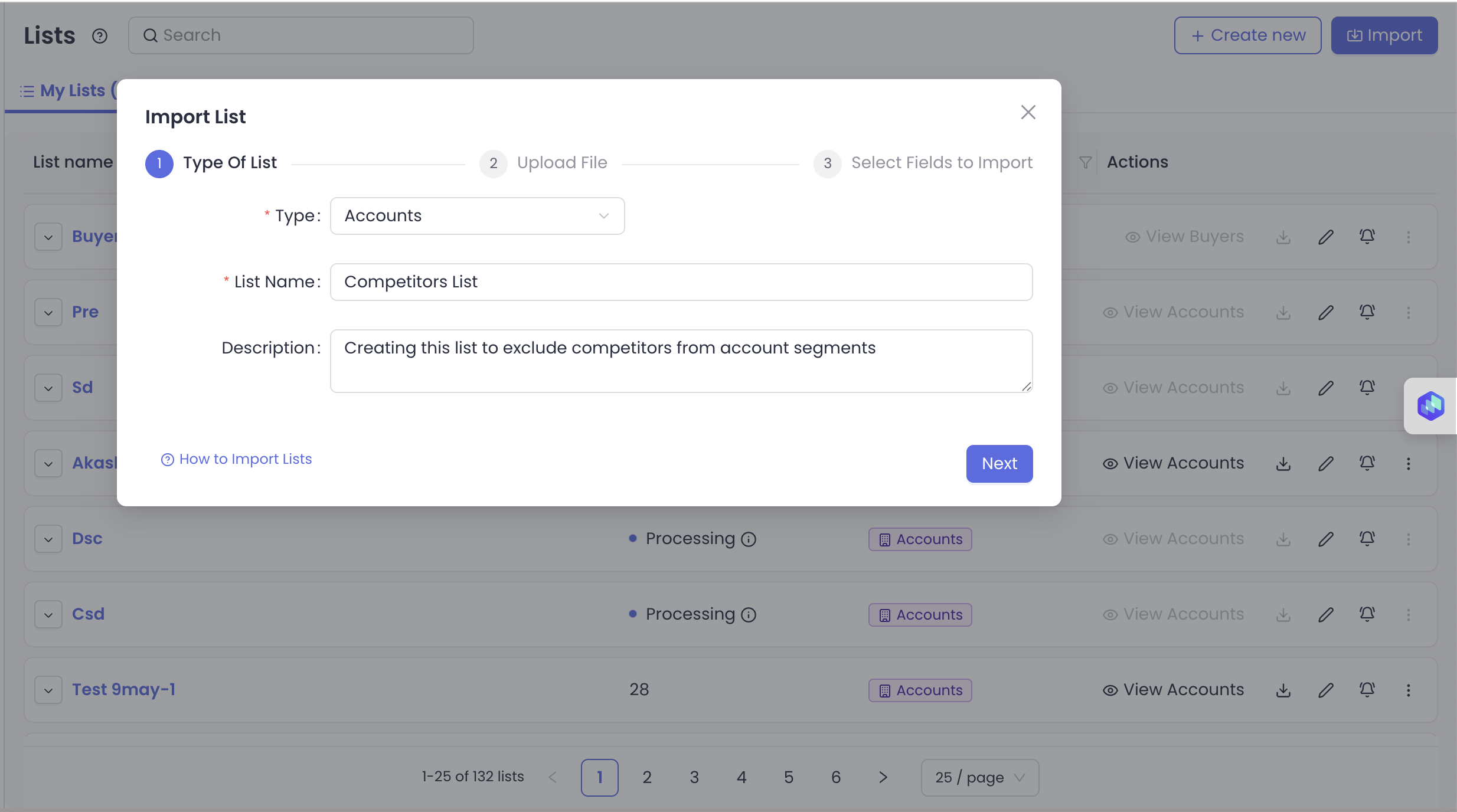
1. Navigate to the **Lists** section under Tools and click on '**Import'**
2. Select the Type of List as **Accounts**
3. Name the list (e.g., "Competitors")
4. Upload a file containing competitor account domains (CSV file type).
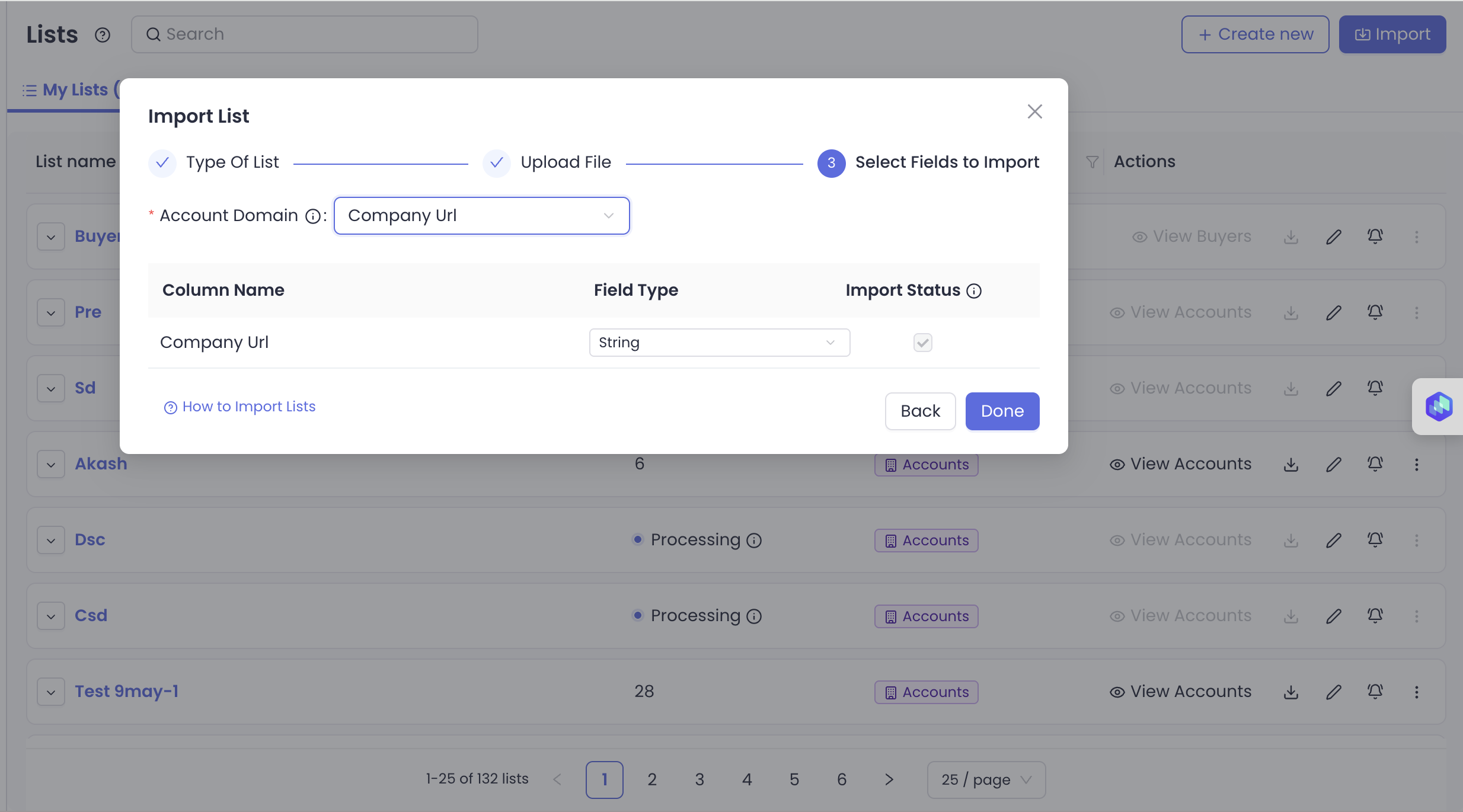
5. Map the **Account Domain** field and complete the upload
Click **Done** to save the list.
**Reference Guide:** [How to Upload a List in Reo.Dev](/accounts/custom-lists.md)
***
#### **Step 2: Exclude Competitor Accounts from a Segment**
Once your competitor list is uploaded, follow these steps to exclude these accounts when creating a segment:
**How to Apply the Filter:**
1. Go to Segments dashboard and click on Create New
2. Choose **Segment Type** → **Accounts**.
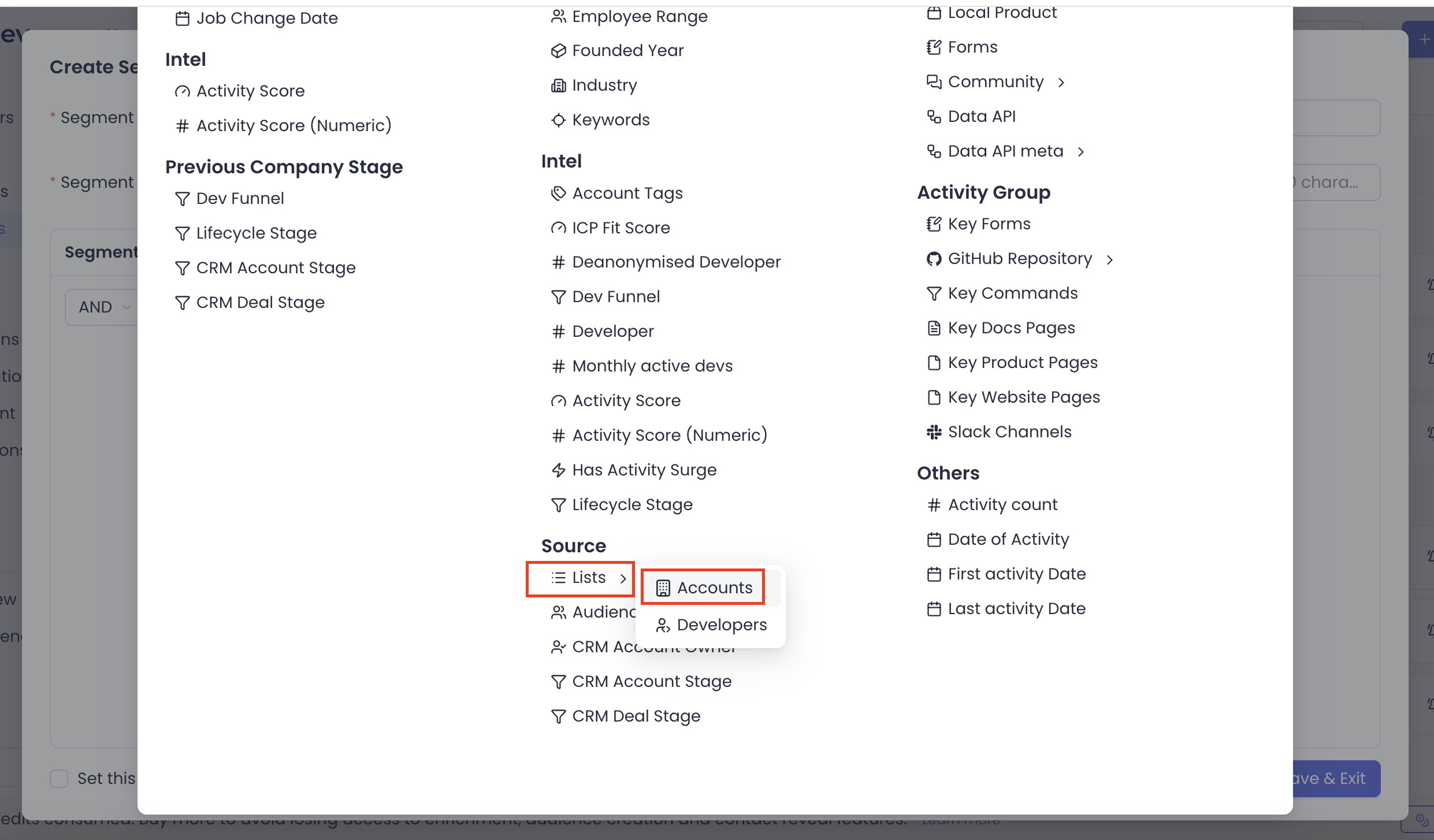
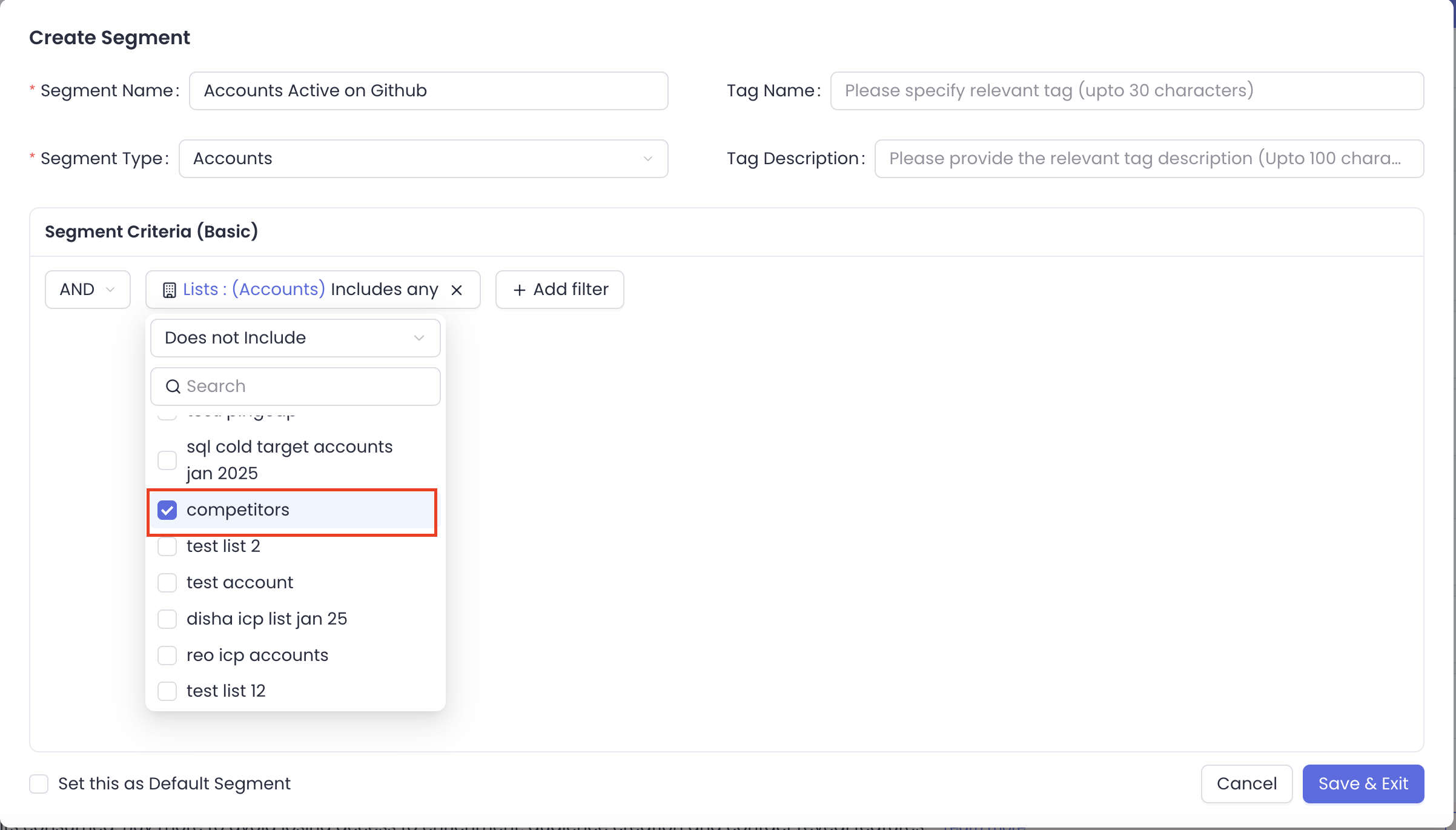
3. Click on Add filter and under **Source** → Click on **Lists** → Select **Accounts**.
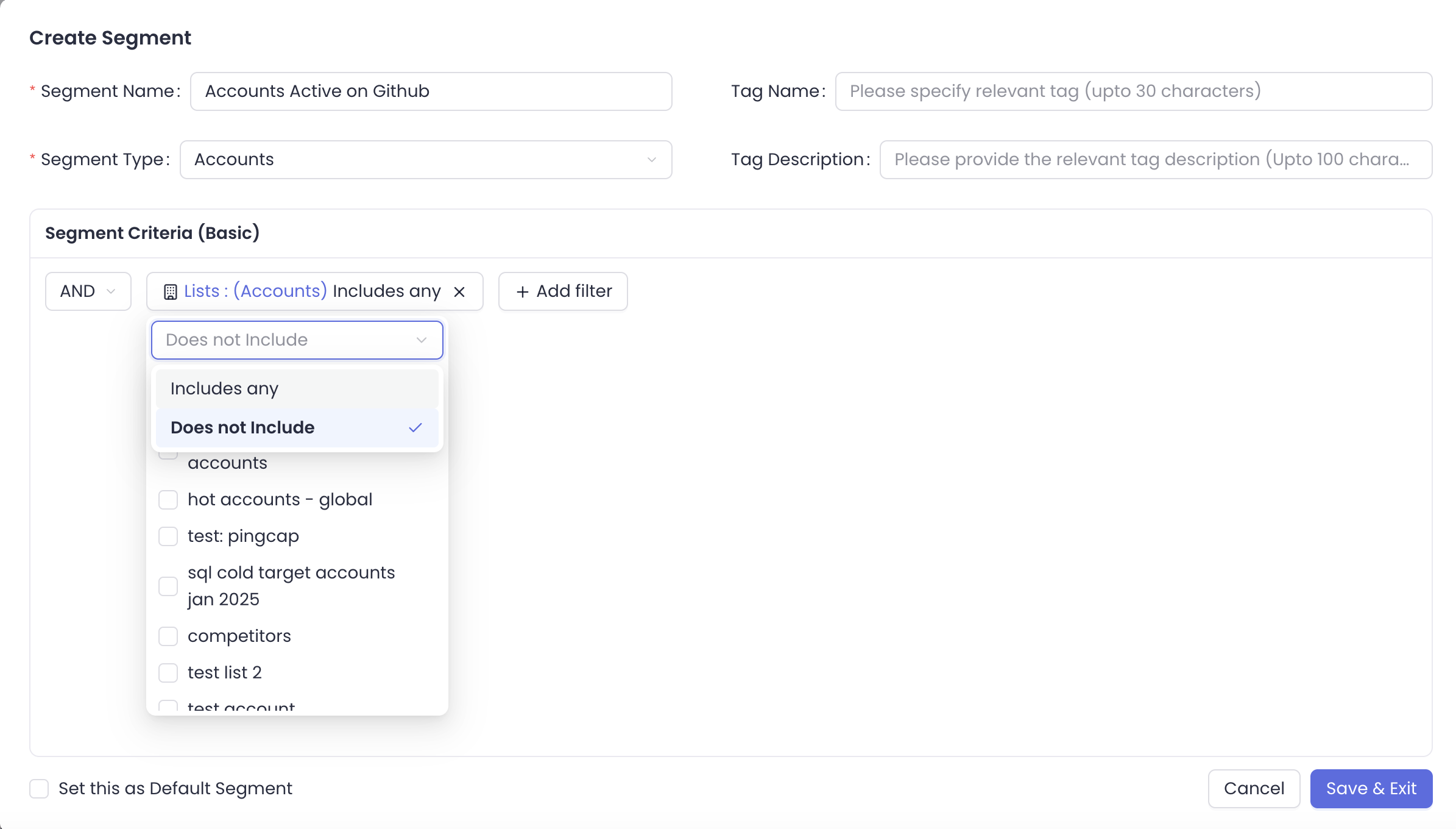
* Select **Does not Include** from the dropdown
* Select the list uploaded in the previous steps
Note: You can add any additional filters as needed. Once done, Click on **Save Segment**.
{% hint style="success" %}
**Tip:** When building account segments, you can choose to always exclude competitor accounts to focus only on high-intent prospects.
{% endhint %}
***
By following these steps, you can create **cleaner, more targeted account segments** in Reo.Dev while avoiding engagement with competitors.
---
# Agent Instructions
This documentation is published with GitBook. GitBook is the documentation platform designed so that both humans and AI agents can read, navigate, and reason over technical content effectively. Learn more at gitbook.com.
## Querying This Documentation
If you need additional information that is not directly available in this page, you can query the documentation dynamically by asking a question.
Perform an HTTP GET request on the current page URL with the `ask` query parameter, and the optional `goal` query parameter:
```
GET https://docs.reo.dev/faqs-and-troubleshooting/how-to-exclude-competitors-from-my-segments-in-reo.dev.md?ask=&goal=
```
`ask` is the immediate question: it should be specific, self-contained, and written in natural language.
`goal` is optional and describes the broader end goal you are ultimately trying to accomplish on behalf of the user. GitBook uses it to tailor the answer towards what is most useful for that goal.
The response will contain a direct answer to the question and relevant excerpts and sources from the documentation.
Use this mechanism when the answer is not explicitly present in the current page, you need clarification or additional context, or you want to retrieve related documentation sections.